
MCP - Overview
Configure Teachable's MCP server in AI tools like Cursor, Windsurf, and Claude Desktop, and choose the right authentication method for Public API and OAuth API access.
The Teachable Model Context Protocol (MCP) server enables AI-powered code editors like Cursor and Windsurf, plus general-purpose tools like Claude Desktop, to interact with your Teachable API and documentation.
The MCP server can make read and write requests on your behalf. Access is limited by the credential and scopes that you configure.
What is MCP?
Model Context Protocol (MCP) is an open standard that allows AI applications to securely access external data sources and tools. The Teachable MCP server provides AI agents with:
- API access to Teachable functionality
- Documentation search capabilities
- Current data from your Teachable account, when authenticated
- Code generation assistance for Teachable integrations
OAuth API access requires a manually-obtained tokenThe MCP server supports both the Admin API and the OAuth API, but the two are set up differently:
- Admin API — configure the
apiKeyheader with your Admin API key, as shown below. That's the whole setup.- OAuth API (
current_usercalls) — MCP does not currently walk you through the authorization flow itself. You'll need to complete the OAuth Quickstart Guide flow separately to obtain an access token, then paste that token into theauthorizationheader manually. Since access tokens expire, you'll need to repeat this whenever the token expires — MCP won't refresh it for you.
Teachable MCP Server Setup
Teachable hosts a remote MCP server at https://docs.teachable.com/mcp. Configure your AI development tool to connect to this server, then add the credential for the API you want to call through MCP.
The examples below use the MCP headers field. Replace YOUR_API_KEY with the Admin API key generated for your school. Keep real keys out of source control, and do not paste them into chats or screenshots.
Add to ~/.cursor/mcp.json:
{
  "mcpServers": {
    "teachable": {
      "url": "https://docs.teachable.com/mcp",
      "headers": {
        "apiKey": "YOUR_API_KEY"
      }
    }
  }
}
Add to ~/.codeium/windsurf/mcp_config.json:
{
  "mcpServers": {
    "teachable": {
      "url": "https://docs.teachable.com/mcp",
      "headers": {
        "apiKey": "YOUR_API_KEY"
      }
    }
  }
}
Claude Desktop connects through its custom connector settings.
1. Add a custom connector
In Claude Desktop, open Settings > Customize > Connectors, then choose to add a custom connector. You'll be asked for:
- Name — a label for the connector, e.g.
Teachable- Remote MCP server URL —
https://docs.teachable.com/mcp
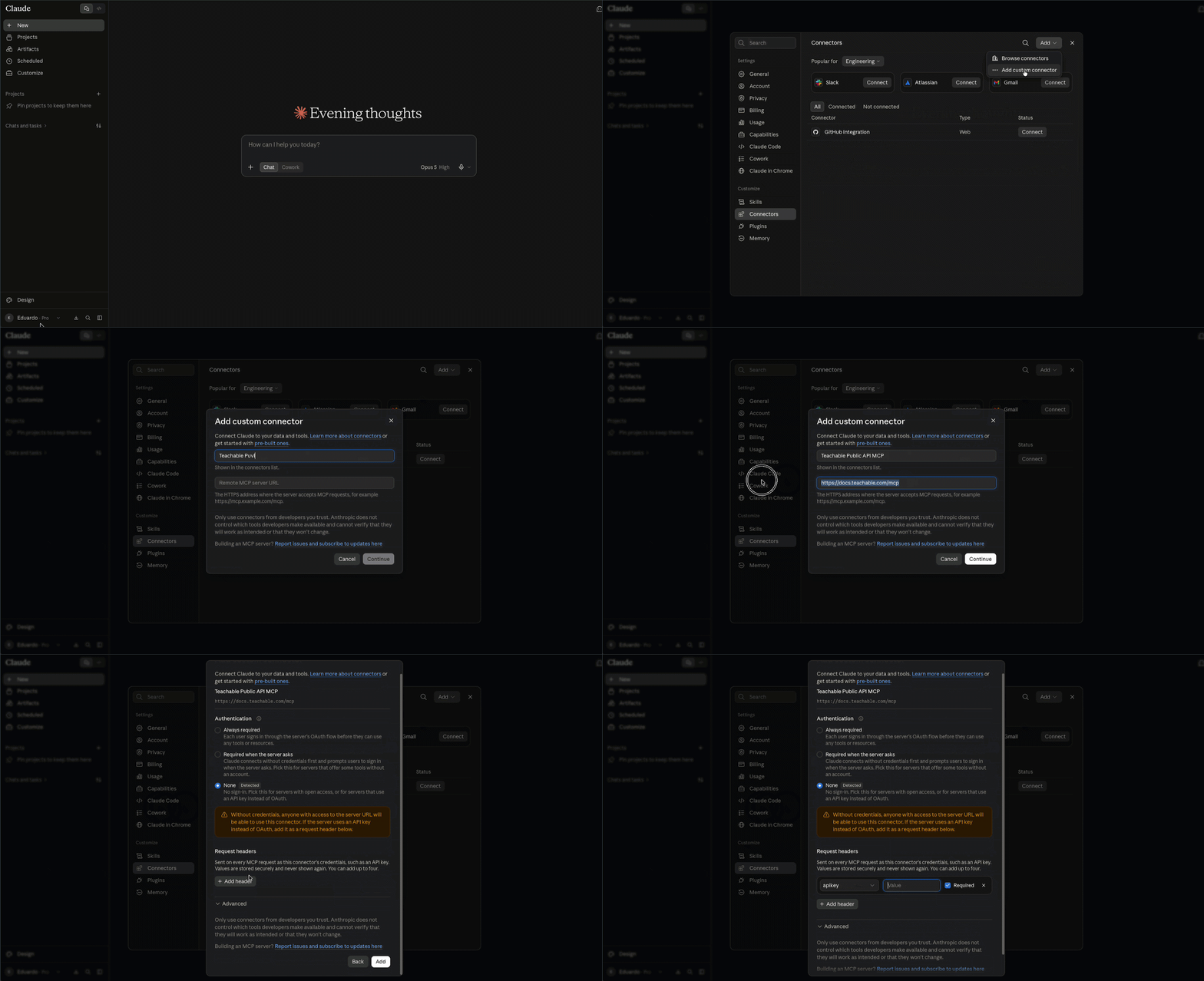
2. Add your API key
After adding the connector, Claude Desktop prompts you to configure how the connection authenticates. This is where your Teachable Admin API key goes.
Need a key? See Getting your API Key — that section also covers selecting the right permissions (scopes) for what you want Claude to be able to do before you generate the key.
3. Approve access and try it
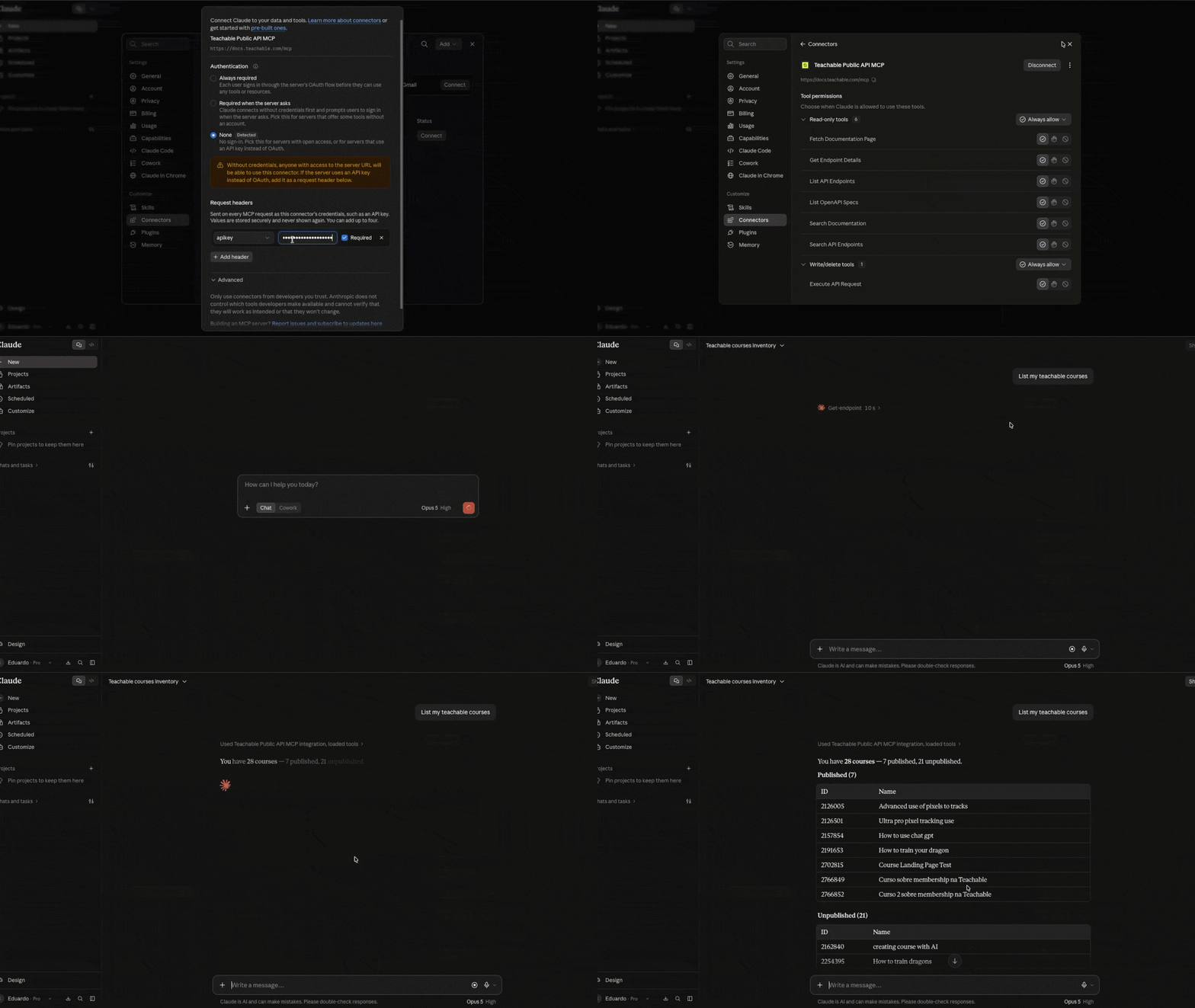
Once connected, ask Claude something read-only to confirm it's working — see Testing Your MCP Setup below.
Add to .vscode/mcp.json:
     {
       "inputs": [],
       "servers": {
         "Teachable": {
           "url": "https://docs.teachable.com/mcp",
           "type": "http",
           "headers": {
             "apiKey": "YOUR_API_KEY"
           }
         }
       }
     }
If you also want to make current_user (OAuth API) calls, add the authorization header alongside apiKey:
{
  "inputs": [],
  "servers": {
    "Teachable": {
      "url": "https://docs.teachable.com/mcp",
      "type": "http",
      "headers": {
        "apiKey": "YOUR_API_KEY",
        "authorization": "Bearer YOUR_ACCESS_TOKEN"
      }
    }
  }
}
See Admin API vs. OAuth API headers below for where YOUR_ACCESS_TOKEN comes from — Admin API calls only need apiKey; the authorization header is only required for current_user calls.
Add to .kiro/settings/mcp.json :
{
  "mcpServers": {
    "Teachable": {
      "url": "https://docs.teachable.com/mcp",
      "type": "http",
      "headers": {
        "apiKey": "YOUR_API_KEY"
      }
    }
  }
}
If you also want to make current_user (OAuth API) calls, add the authorization header alongside apiKey:
{
  "mcpServers": {
    "Teachable": {
      "url": "https://docs.teachable.com/mcp",
      "type": "http",
      "headers": {
        "apiKey": "YOUR_API_KEY",
        "authorization": "Bearer YOUR_ACCESS_TOKEN"
      }
    }
  }
}
See Admin API vs. OAuth API headers below for where YOUR_ACCESS_TOKEN comes from — Admin API calls only need apiKey; the authorization header is only required for current_user calls.
Choosing an API Version
The MCP server can connect to either API version.
- v1 — use the URL as shown above:
https://docs.teachable.com/mcp - v2 — append
?branch=2.0to the URL:https://docs.teachable.com/mcp?branch=2.0
This applies the same way regardless of which client you're using — just change the url value in your client's configuration.
{
  "mcpServers": {
    "teachable": {
      "url": "https://docs.teachable.com/mcp?branch=2.0",
      "headers": {
        "apiKey": "YOUR_API_KEY"
      }
    }
  }
}
Switching to v2 may also require a new API keySwitching to v2 means changing both the URL and, in most cases, the API key.
API v2 introduced scopes — permissions attached to each key that control which endpoints it can call. A key created before v2 existed doesn't have scopes assigned the way a v2 key does, so it may not work correctly (or at all) against
?branch=2.0. Generate a new API key with the appropriate scopes for v2 rather than reusing an older key. See Getting your API Key for how to create one and select permissions.
API v2 is in Beta. See Authentication for details on requesting access.
Choose the Right Authentication Method
Use the authentication method that matches the API you want to call through MCP:
- Teachable Public API uses a school API key in the
apiKeyheader and is designed for school administration features. The key's scopes determine which operations are allowed. - Teachable OAuth API uses an OAuth access token in the
authorization: Bearer ACCESS_TOKENheader and is designed for apps that act on behalf of an authenticated user. It gives that user access to data related to their account within a school. Through MCP, you obtain this token manually via the OAuth Quickstart Guide flow — MCP doesn't run the authorization flow for you.
Admin API vs. OAuth API headers
Which headers you include depends on which calls you want to make:
- Admin API calls — include
apiKeyonly. current_user(OAuth API) calls — also includeauthorization: Bearer ACCESS_TOKEN, using the access token from the OAuth Quickstart Guide flow.
You can include both headers at once. MCP uses whichever one the endpoint you're calling requires — apiKey for Admin API endpoints, authorization for current_user endpoints.
Do not send an OAuth access token in apiKey, and do not send a Public API key as a Bearer token. If your MCP client supports environment-variable substitution, use it instead of placing the value directly in the file, for example:
 {
   "headers": {
     "apiKey": "${TEACHABLE_API_KEY}"
   }
 }
The exact environment-variable syntax depends on the MCP client. Consult that client's documentation if ${TEACHABLE_API_KEY} is not expanded automatically. (This applies to clients using a config file; Claude's custom connector UI handles the key entry separately, as shown above.)
Security and Permissions
Before connecting the server:
- Create a credential with only the scopes required for the workflow. Prefer read-only scopes when write access is not needed.
- Review and confirm write or delete actions before allowing the AI client to execute them.
- Keep API keys and OAuth tokens out of source control, screenshots, prompts, and support tickets.
- Rotate or revoke a credential immediately if it is exposed. A revoked or expired credential must be replaced in the MCP client configuration.
The MCP server and the configured API credential may expose account data to the AI tool. Follow your organization's data handling requirements before connecting a production school account.
Testing Your MCP Setup
Once configured, you can test your MCP server connection:
- Open your AI editor (Cursor, Windsurf, etc.)
- Start a new chat with the AI assistant
- Ask about Teachable with a read-only request, such as:
- "List the first five courses in my school."
- "Search the Teachable API documentation for course enrollment endpoints."
The first request should return data only when the configured credential is valid, the school supports the selected API, and the credential has the required scope. If it fails, verify the MCP server URL, the apiKey header, the key status, and the key scopes.
Do not use a create, update, or delete request as the first connection test.
Updated about 2 months ago